Timing
Timekeeping
For timekeeping, open the Timing tab. Then, select the right round, discipline and heat in the top bar.
Starting a heat
Make sure the Start impulse field is empty, otherwise the system will not start. If it is not empty, triple check if you want to start this heat. If so, clear the old results by using the red X in the top right corner.
Arm the timing system by ticking the ACTIVATE TIMING checkbox
Press start (bottom right) to start the tape.
At go, check if the displays start and Start impulse is filled
Correcting a time
Scenario 1: one timekeeper pressed by accident in the middle of the heat:
Click the incorrect Impulse field
Clear the field
Press enter
Scenario 2: The timekeepers pressed the button after the second cookie, but the athlete cut a third cookie. The timers pressed again.
The system does not automatically take the last time of a timekeeper
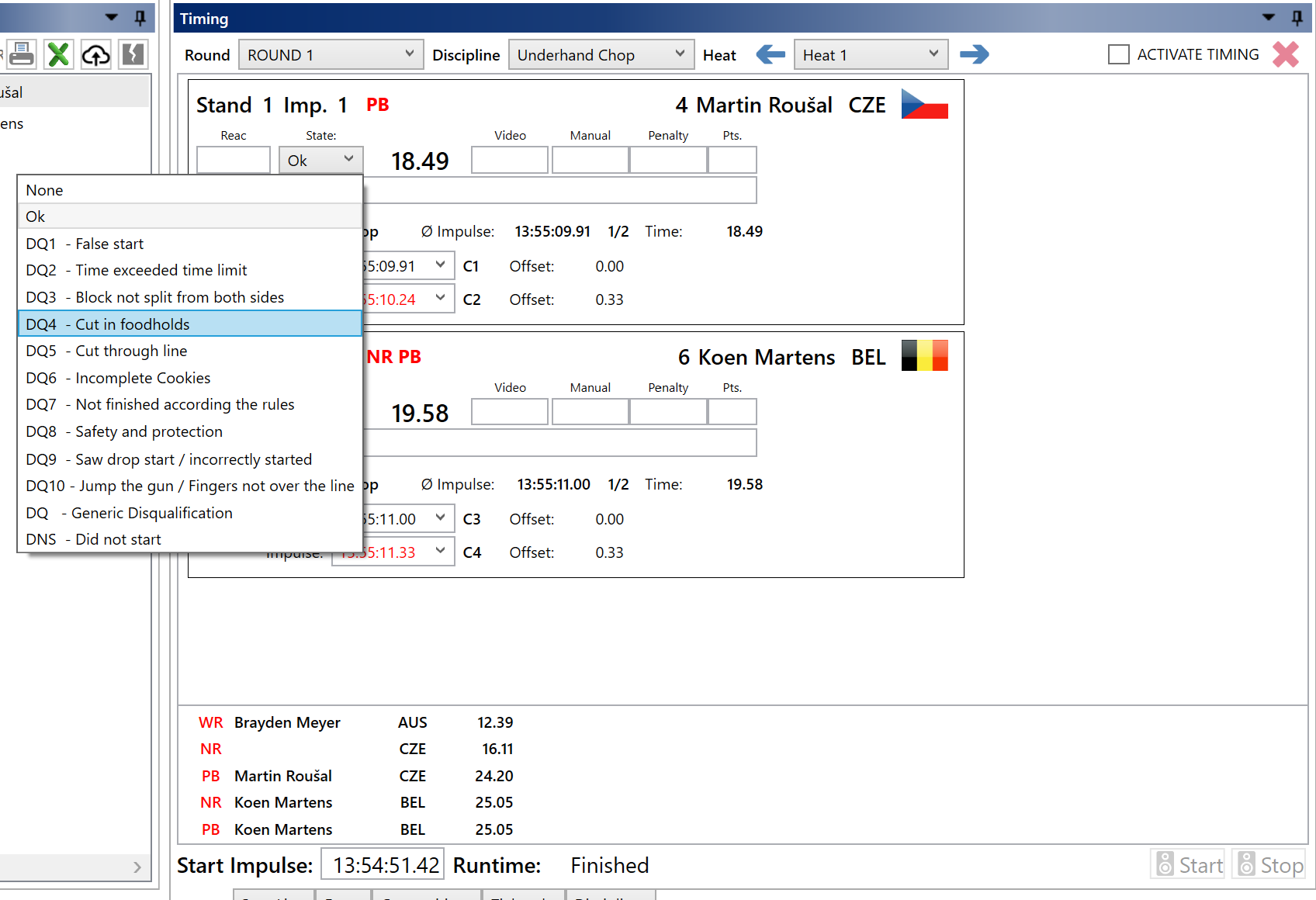
When a timekeeper presses a second time, the system shows his channel number in red:

In this case, timer C2 pressed 2 times. Timer C4 pressed after C2 with a large difference.
Go to the timer who pressed multiple times, expand the combobox and select the correct time.
DQ
When an athlete get a DQ, use the State combobox to choose the right DQ reason. If the DQ is reversed, set the State to OK
Videotime
In the video field, the videotime can be entered. Always press enter after entering the time to save it.
Advancing athletes to next rounds
Make sure the advancements are set up, as explained in Setup advancements. Do this before the competition!
Go to the Start lists tab
Select the round to fill in the bar at the top
Click Advance discipline to only advance the current selected discipline, select Advance round to advance for the complete round.
Controlling the displays
The displays can operate in several modes. These are:
Auto
Clear
TimeOfDay
Time
A mode can be selected in the display connector. Default is Auto.
Clear
Clear the displays
TimeOfDay
Shows the current time of day. Time is taken from the computer clock
Time
Display only timing times
Auto
Automatically switch between Time and TimeOfDay. When the timing is activated, the displays are cleared. They automatically start when the heat starts. After some time they automatically fall back to TimeOfDay. The amount of inactive time can be configured in settings under InactivityTimeoutMinutes.
Printing results
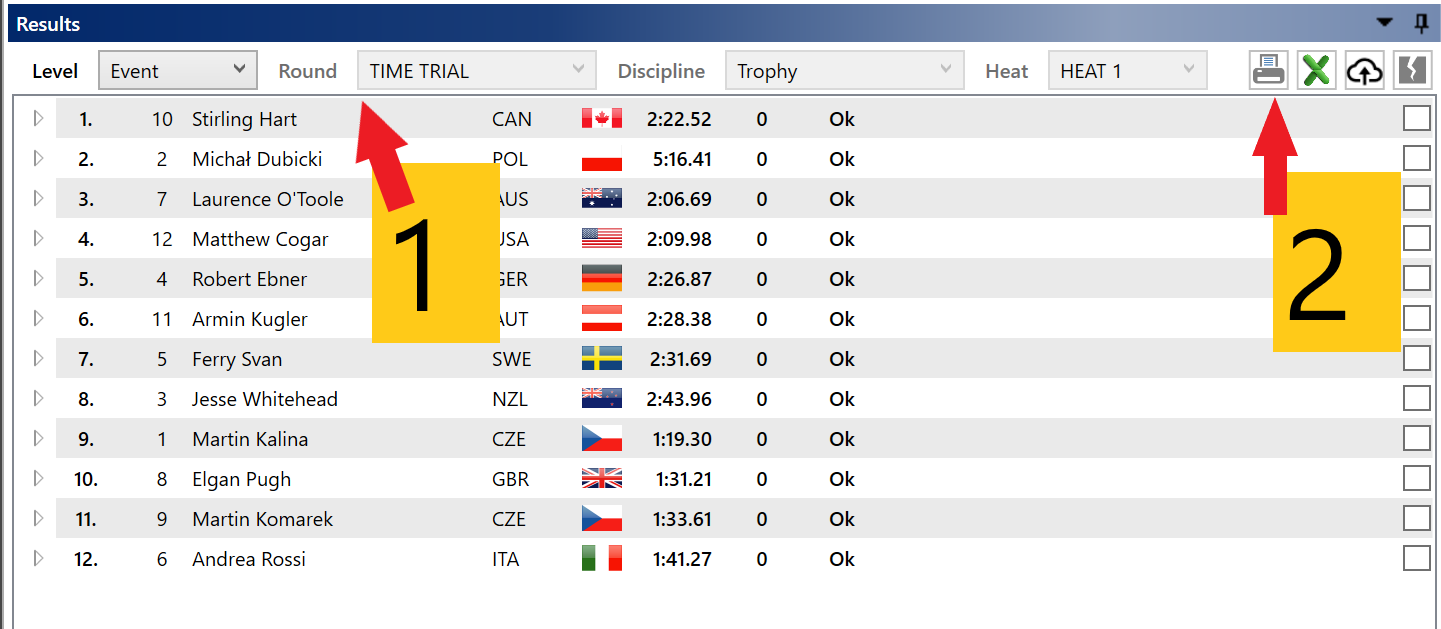
Printing results can be done in the Results tab:
First, select which results to print:
Level: Discipline for a single discipline, Event for Overall results
Round / Discipline: select the discipline to print
For a Trophy format: select discipline / Time trial / Trophy for the time trail results. Select Event for the bracket.
Click the printer icon
Print the report, do not forget to manually print landscape if required